
Use this to add mailboxes one at a time. Each mailbox owner gets an email and connects their own mailbox, so you don’t need Google Workspace admin access.
To add many mailboxes at once without each owner having to do anything, see How do I bulk add Google Workspace mailboxes?
Send the authentication email
Section titled “Send the authentication email”-
Click Entities in the bottom-left corner.
-
Go to Mailboxes and click Add a mailbox.
-
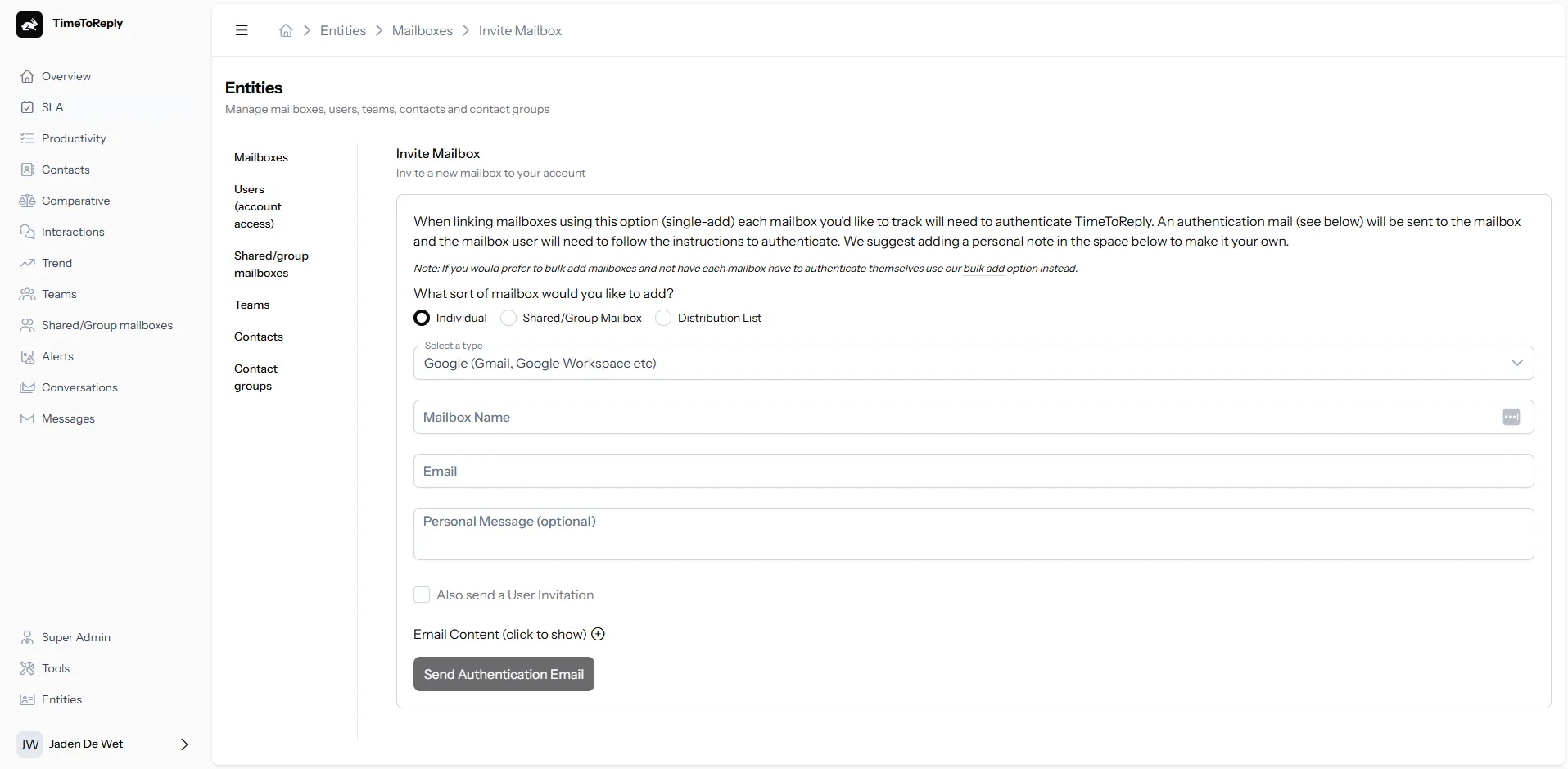
Under What sort of mailbox would you like to add?, choose Individual.
-
Under Select a type, choose Google (Gmail, Google Workspace etc).
-
Enter the Mailbox Name and Email. You can also add a personal message.
-
Click Send Authentication Email.
What the mailbox owner does
Section titled “What the mailbox owner does”- They open the email from timetoreply and click the button to link their mailbox.
- They log in to the Google account being added.
- They allow timetoreply access.
Check it worked
Section titled “Check it worked”Refresh the Mailboxes page. A tick appears next to the mailbox once it’s connected.
After about 10 minutes, you’ll see data for the mailbox in the Overview report and in Messages.