
The SLA report shows how well you respond to a particular customer domain or email address. You set your goals, and timetoreply tracks your team against them. The report also compares your performance with the previous period.
You can set any of these goals:
- First response time goal: how quickly you reply to a new email.
- Overall response time goal: how quickly you reply to every email in a conversation.
- Time to close goal: how long a conversation should take to finish.
Goals are measured in business hours.
Set up the report
Section titled “Set up the report”-
Choose your filters. Use the filter bar at the top of the report:
- Show report for: your whole company, a mailbox, a team, or a group/shared mailbox.
- When communicating with: the contact or contact group you want to report on.
- The date range you want to look at.

-
Set your goals. Under Set your reply time goals, enter the times you’re aiming for.

In this example, the overall response time goal is 2 hours, the first response time goal is 1 hour and the time to close goal is 48 hours.
Get the report emailed to you
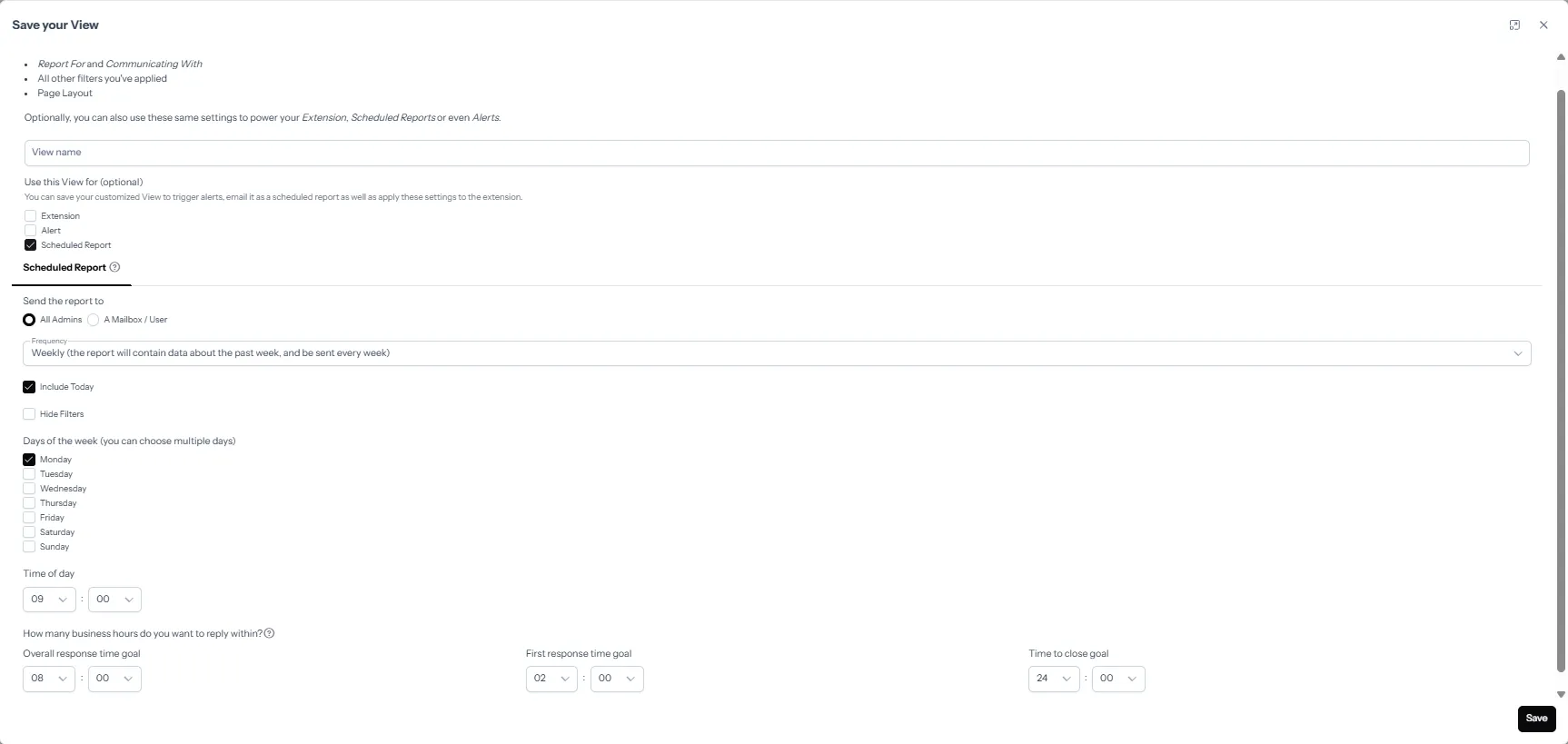
Section titled “Get the report emailed to you”Scheduled reports are set up with Views, so the report uses the filters you saved. Because you save it from the SLA report, it’s sent as the SLA report (SLA PDF) automatically.
You need permission to manage scheduled reports before Save View and Load View appear.
- Open the report you want to use, and set Show report for, When communicating with and any Filters.
- Click Save View and give your view a name.
- Under Use this View for, tick Scheduled Report.
- On the Scheduled Report tab, choose:
- Send the report to: All Admins, or A Mailbox / User. For a mailbox or user, you can also add CC Additional Recipients.
- Frequency:
- Daily: the past day, sent on the days you choose.
- Weekly: the past week.
- Monthly: the past month. Then choose Time of month: Beginning, End, or a Specific day (1st to 28th).
- Quarterly: the past three months.
- Days of the week: daily and weekly only. You can choose several.
- Time of day to send it.
- Include Today: on by default. Ticked, the report runs through the end of today. Unticked, it stops at the end of yesterday. A Productivity report always stops at yesterday.
- Hide Filters: off by default. Ticked, the PDF leaves out the filter summary.
- Overall response time goal, First response time goal, and Time to close goal: in business hours. These are the same goals as on the report, and they are saved with the view.
- Click Save.
To edit it later, see Edit a scheduled report.